

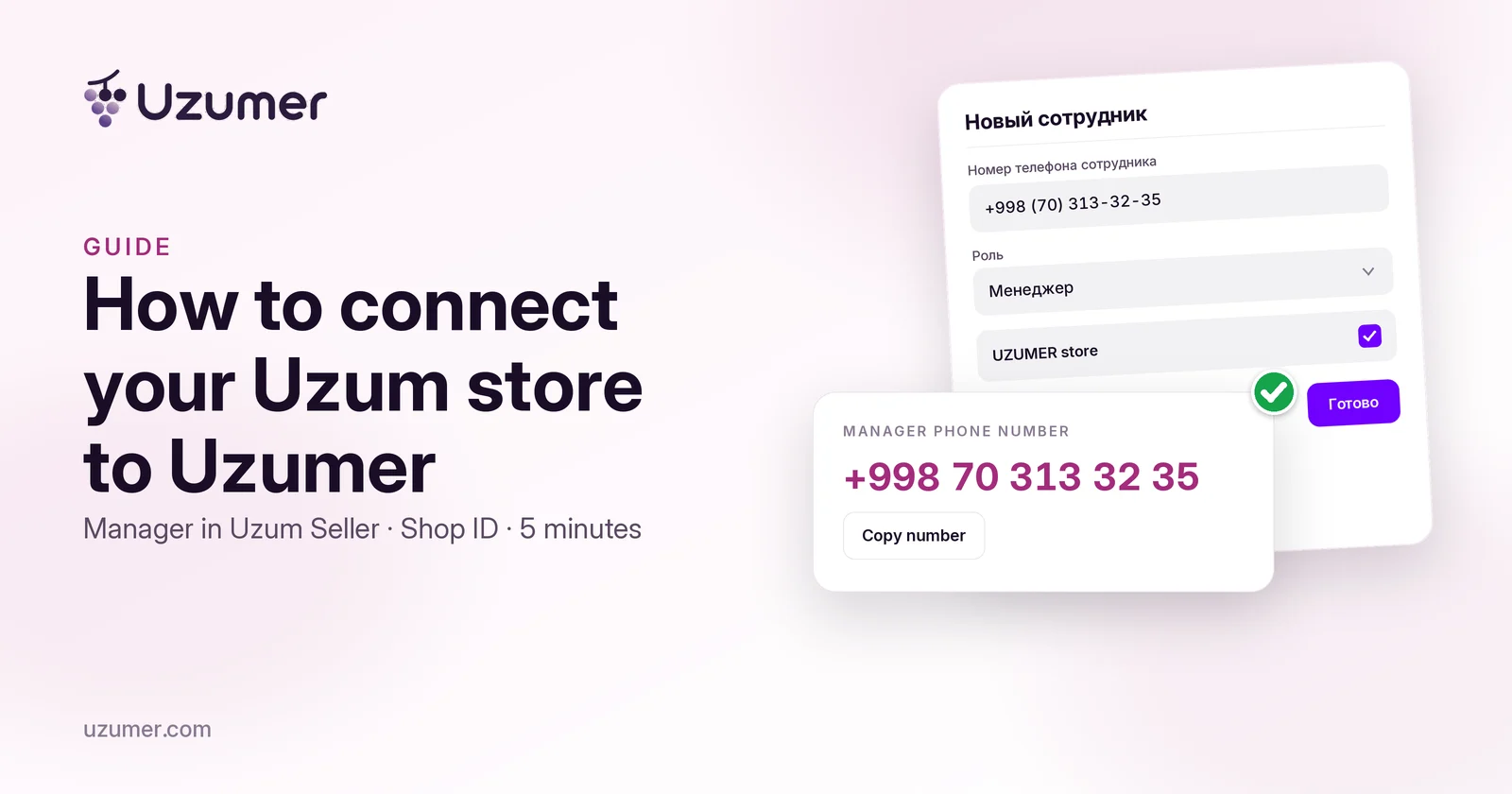
“My Shop” shows your Uzum store in Uzumer: orders, finances, stock, reviews, and advertising. Uzumer reads them through an employee you add in Uzum Seller with the role “Менеджер” (Manager). Set aside about five minutes.
You stay the owner. Uzumer never asks for your Uzum Seller password, and the Manager role cannot withdraw money.
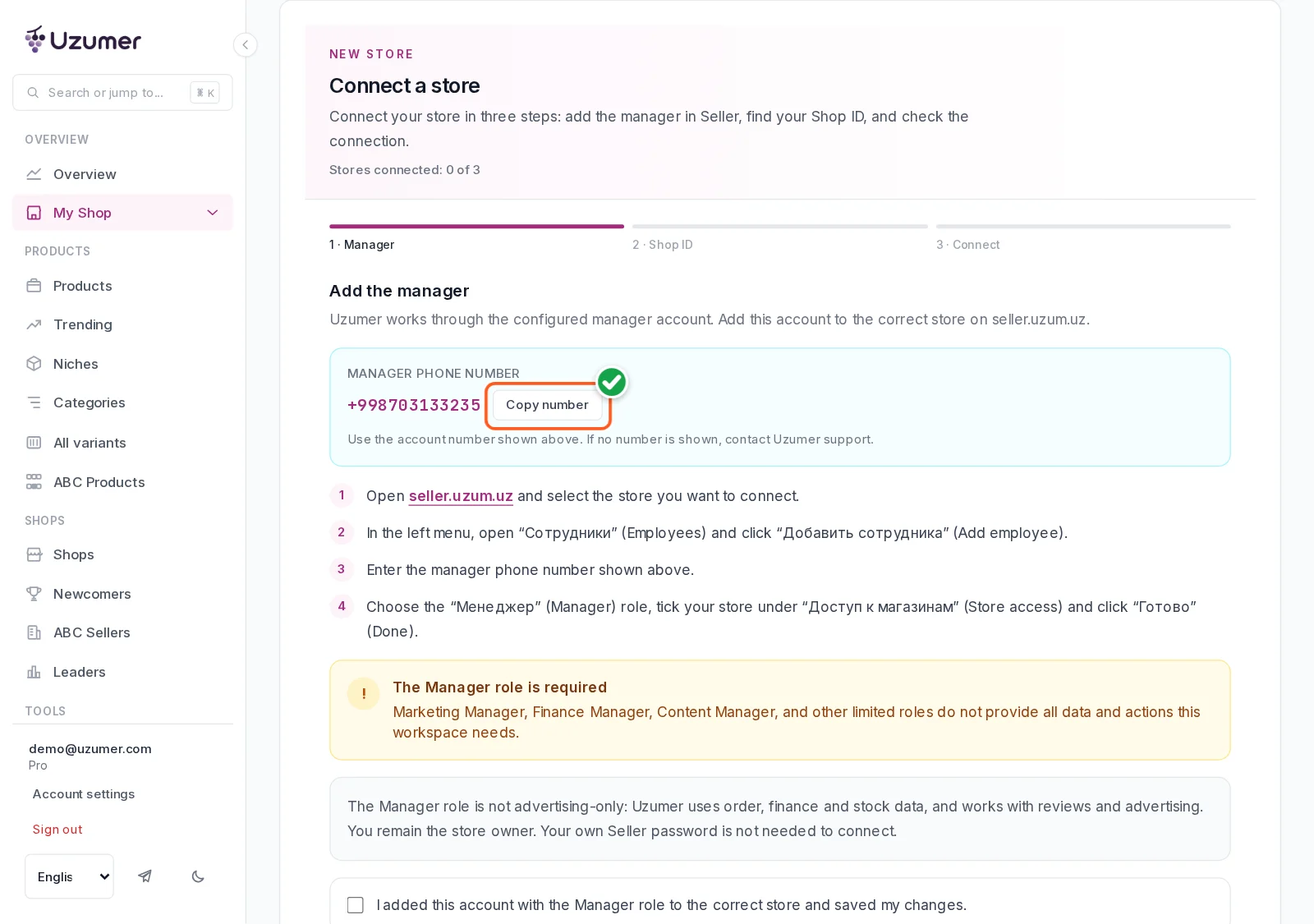
In the screenshots, an orange frame and a green tick show where to click; numbers show the order.
What you need
A signed-in Uzumer account and Uzum Seller at seller.uzum.uz, with access to the employees section.
The manager number on the “Manager” step. It is +998 70 313 32 35 today; if the form shows other digits, copy those.
The Shop ID: the digits in the Seller address bar, as in step 10.
In Uzumer: open the connection wizard
Step 1. Open “My Shop”
After you sign in, you are on the home page and no store is connected yet. In the left menu, click “My Shop”.
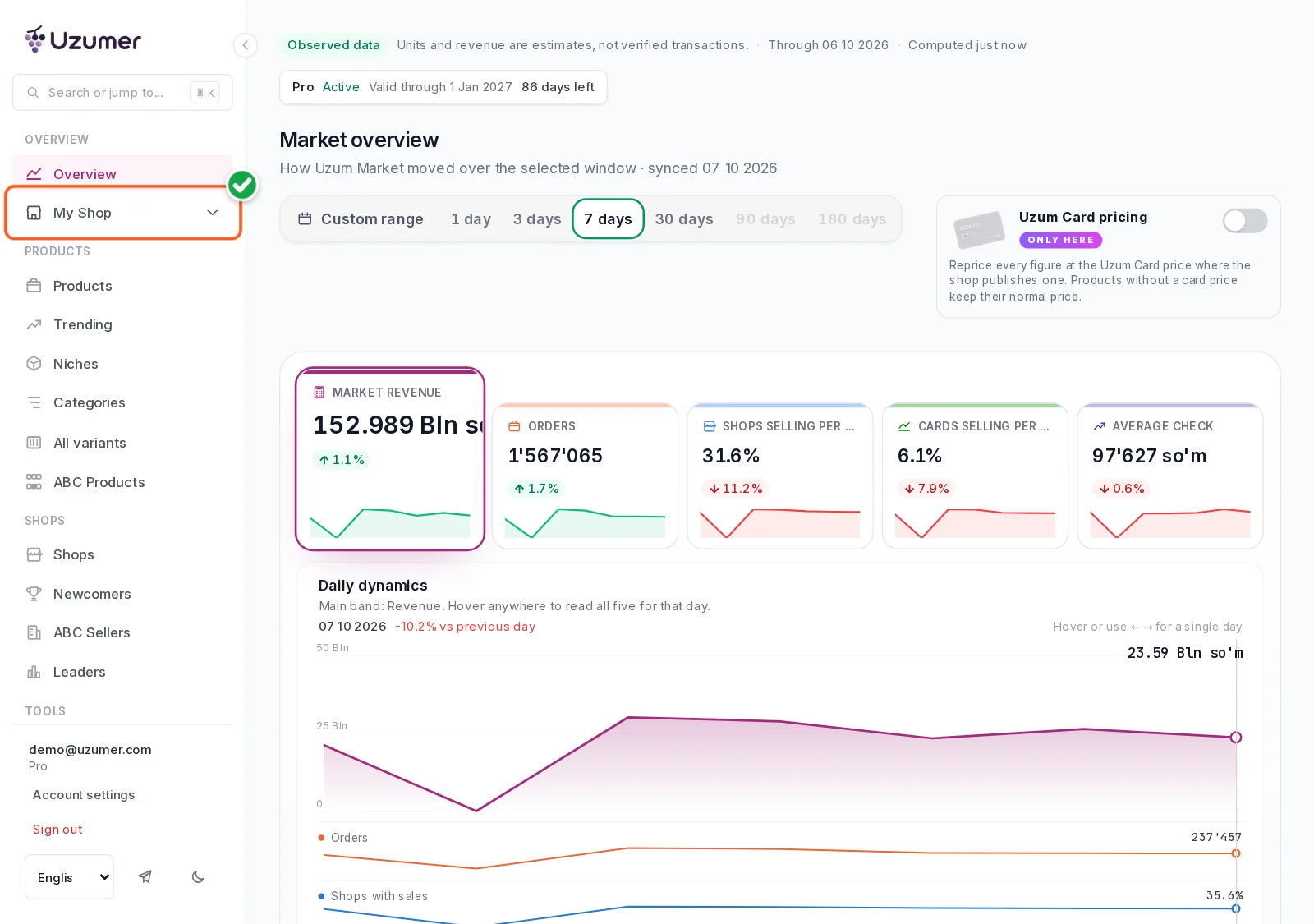
“My Shop” opens. With no store connected, the page is titled “Connect your Uzum store”.
Step 2. Copy the number
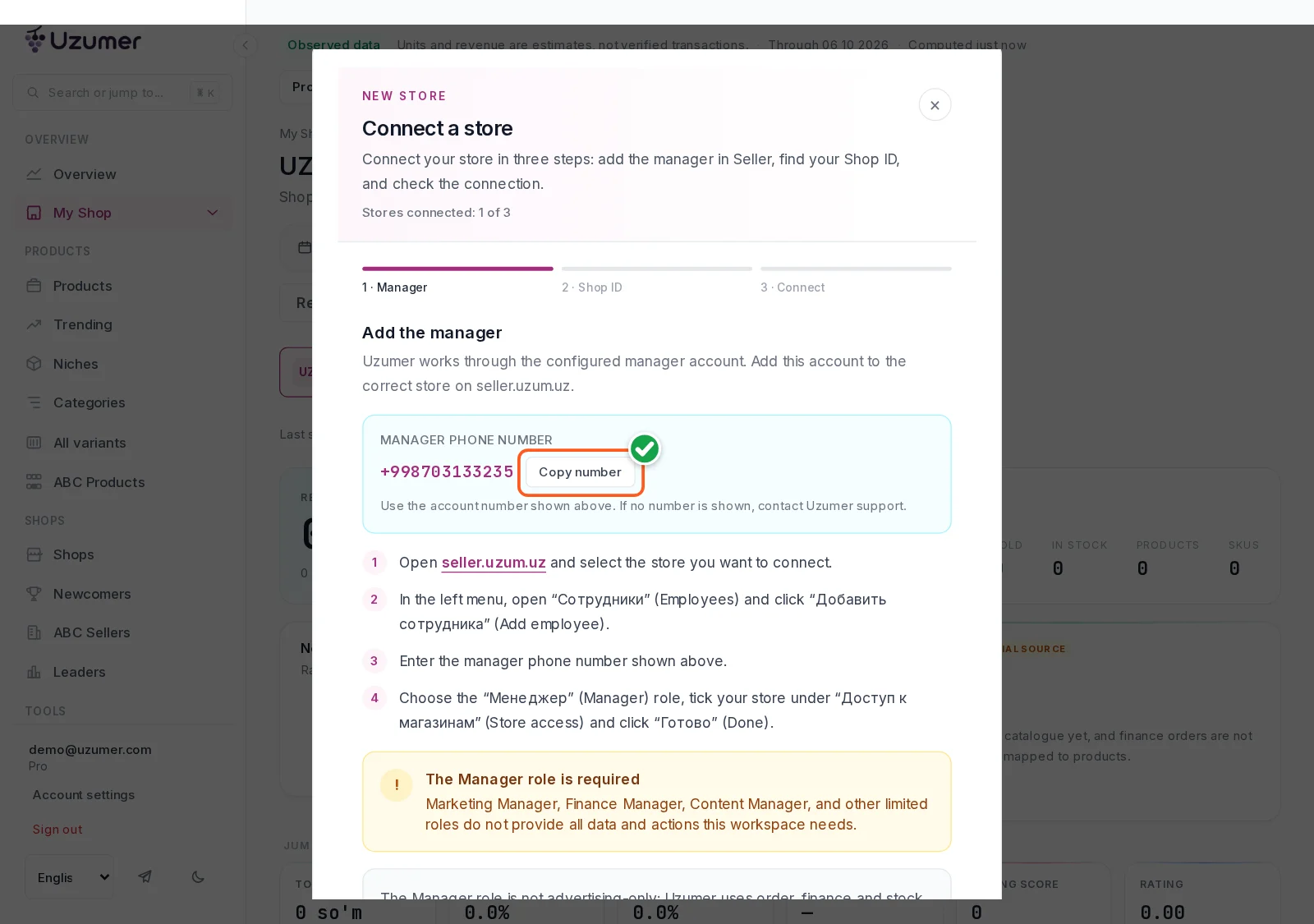
The connection wizard is already on this page, on the “Manager” step. Press “Copy number” and keep this tab open. A note beside the number sketches how to add the employee. Leave the confirmation and “Next” until step 9, once that employee is in the Uzum Seller list.
In Uzum Seller: add the employee
Open seller.uzum.uz. The screen is in Russian, and the labels below match it.
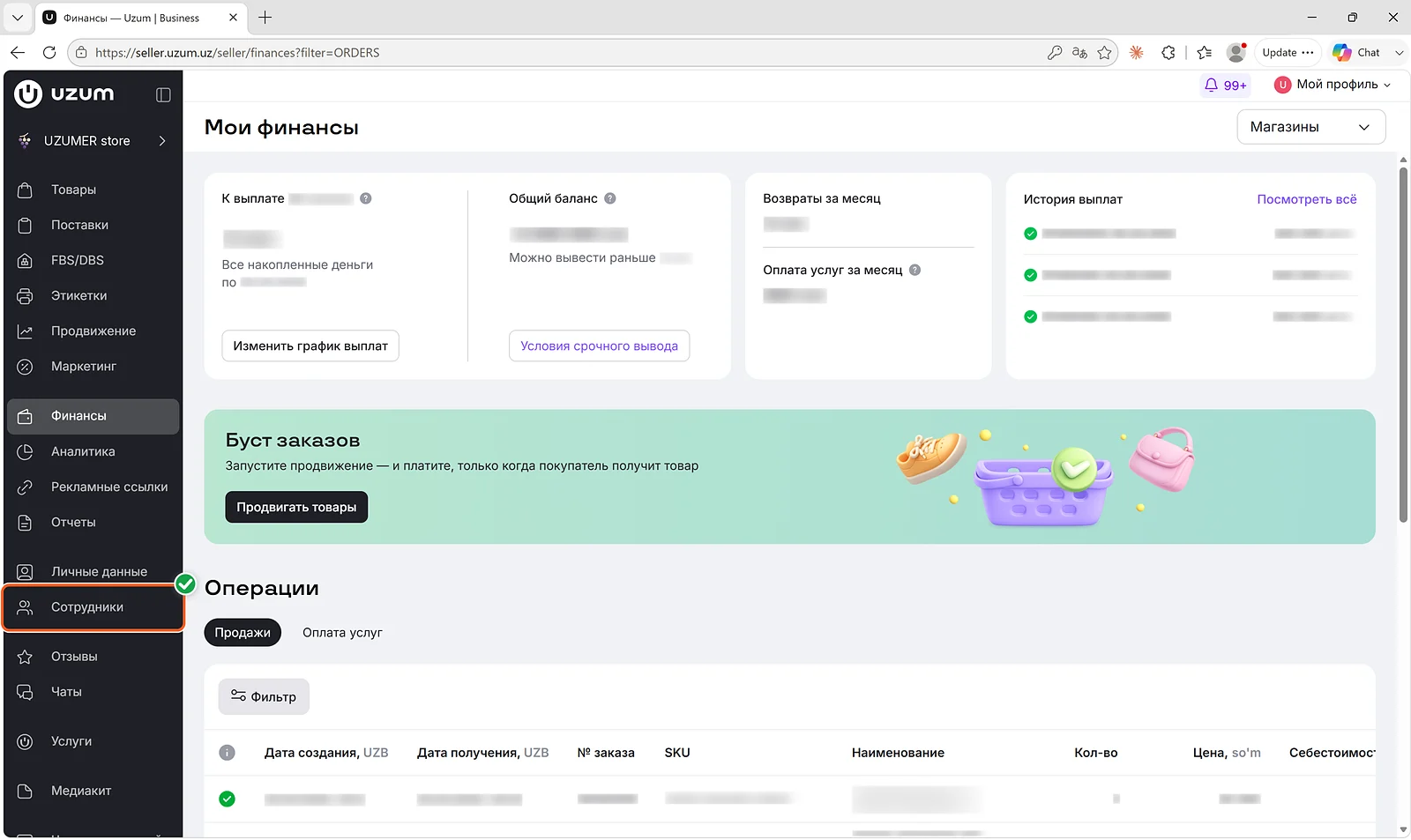
Step 3. Open “Сотрудники” (Employees)
In the left menu, click “Сотрудники”. The page lists people who already have access to your stores.
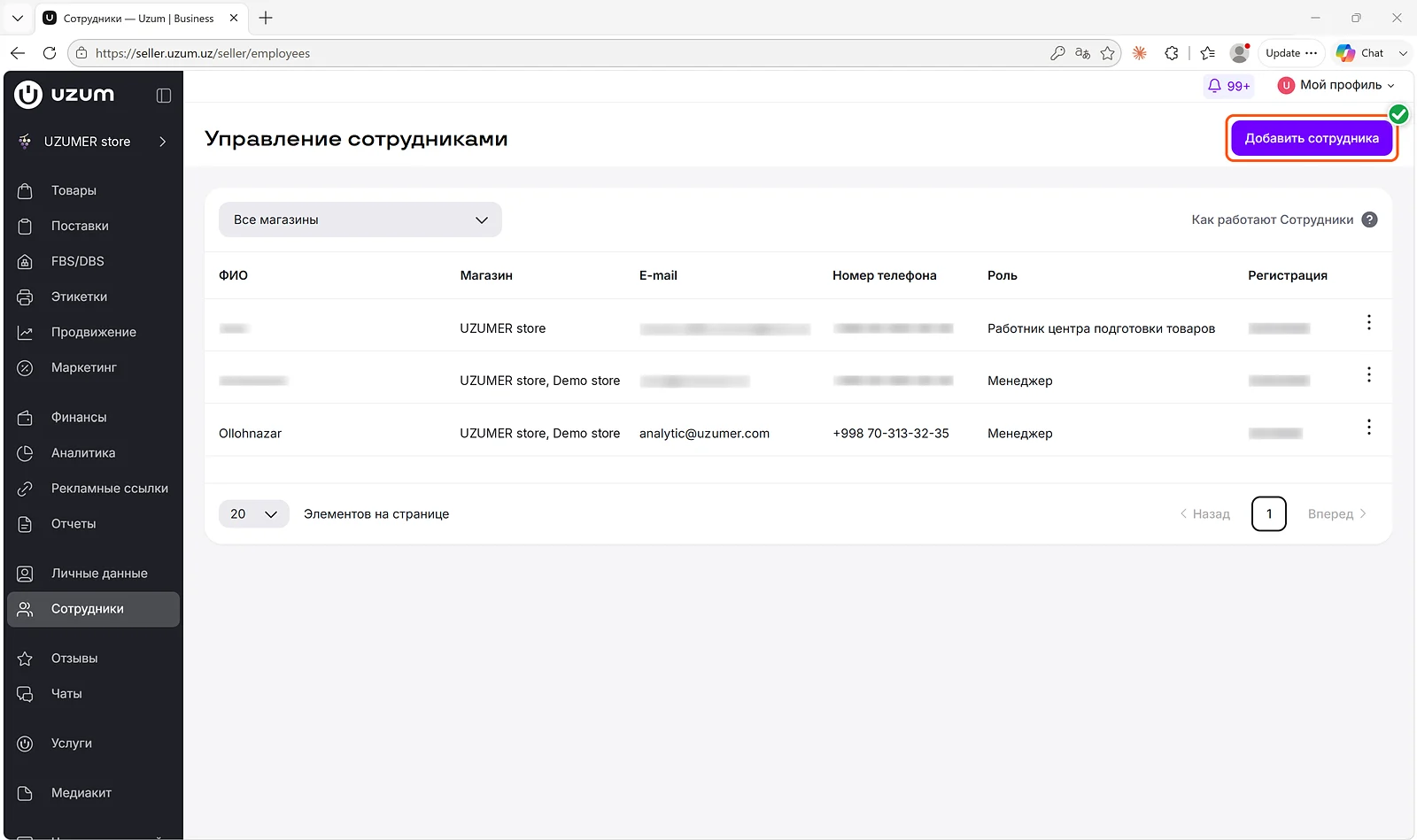
Step 4. Click “Добавить сотрудника” (Add an employee)
At the top right, click “Добавить сотрудника”. The panel “Новый сотрудник” (New employee) asks for a phone number, a role, and store access.
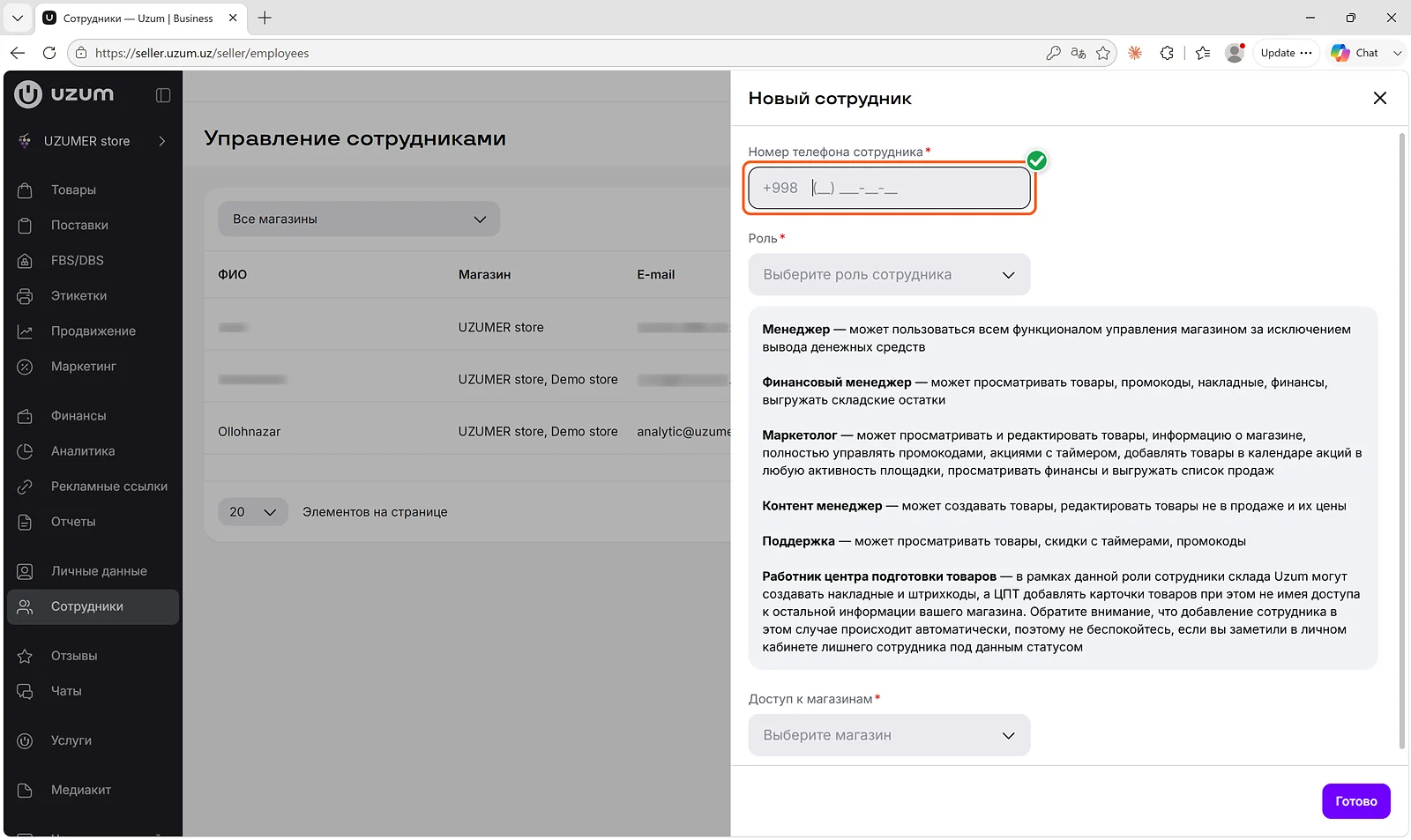
Step 5. Enter the phone number
“Номер телефона сотрудника” (Employee phone number) already contains +998. Type 70 313 32 35 to make +998 70 313 32 35 — digits only, not an email or a Shop ID. If the digits differ from the wizard, paste the number from “Copy number”.
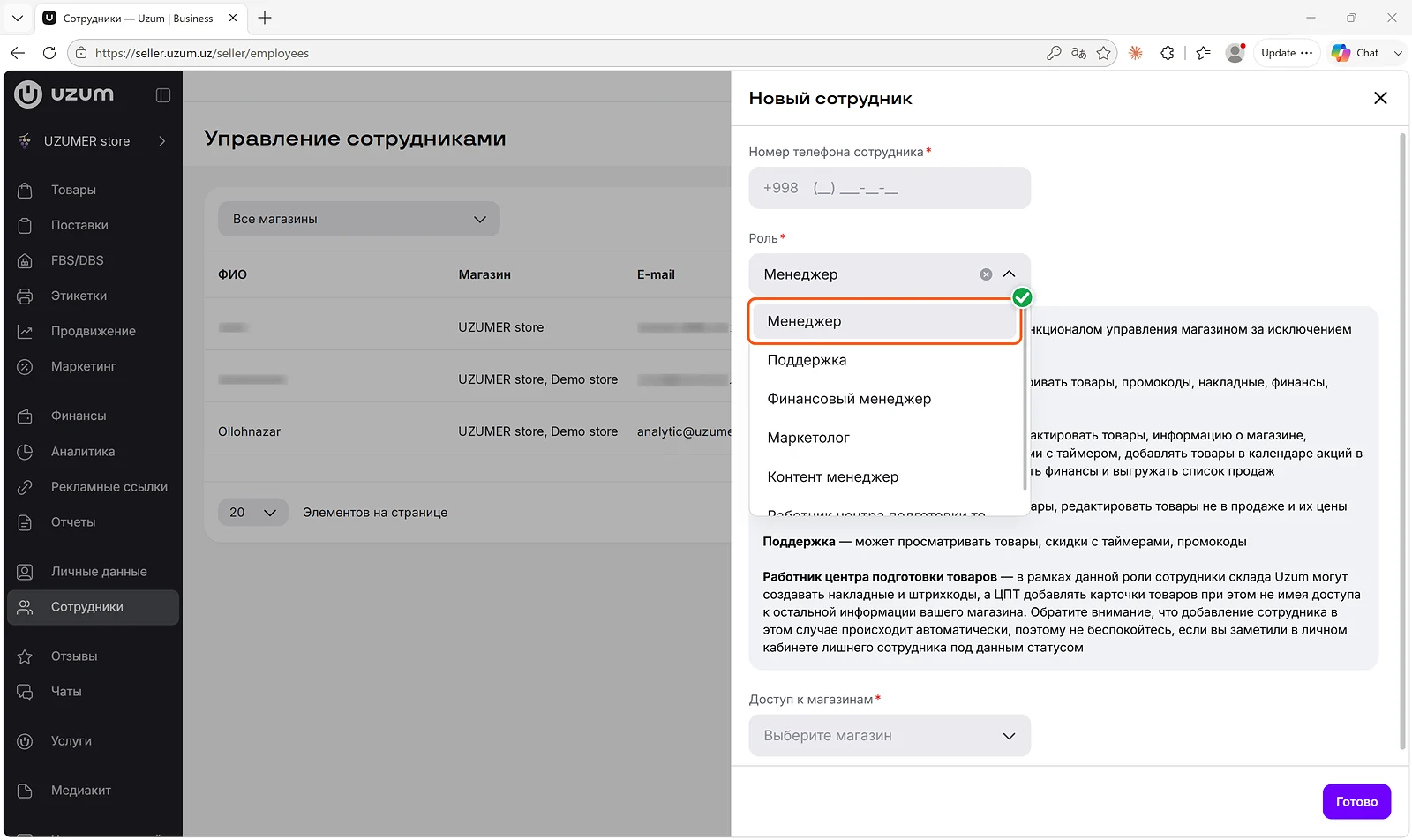
Step 6. Choose the “Менеджер” role
Open “Роль” (Role) and choose “Менеджер”. Uzum Seller’s wording is: «Менеджер — может пользоваться всем функционалом управления магазином за исключением вывода денежных средств». Uzumer needs that role for orders, finances, stock, reviews, and advertising. “Финансовый менеджер” (Finance manager), “Маркетолог” (Marketer), “Контент менеджер” (Content manager), “Поддержка” (Support), and “Работник центра подготовки товаров” (Goods preparation center worker) do not provide it, so the check rejects them.
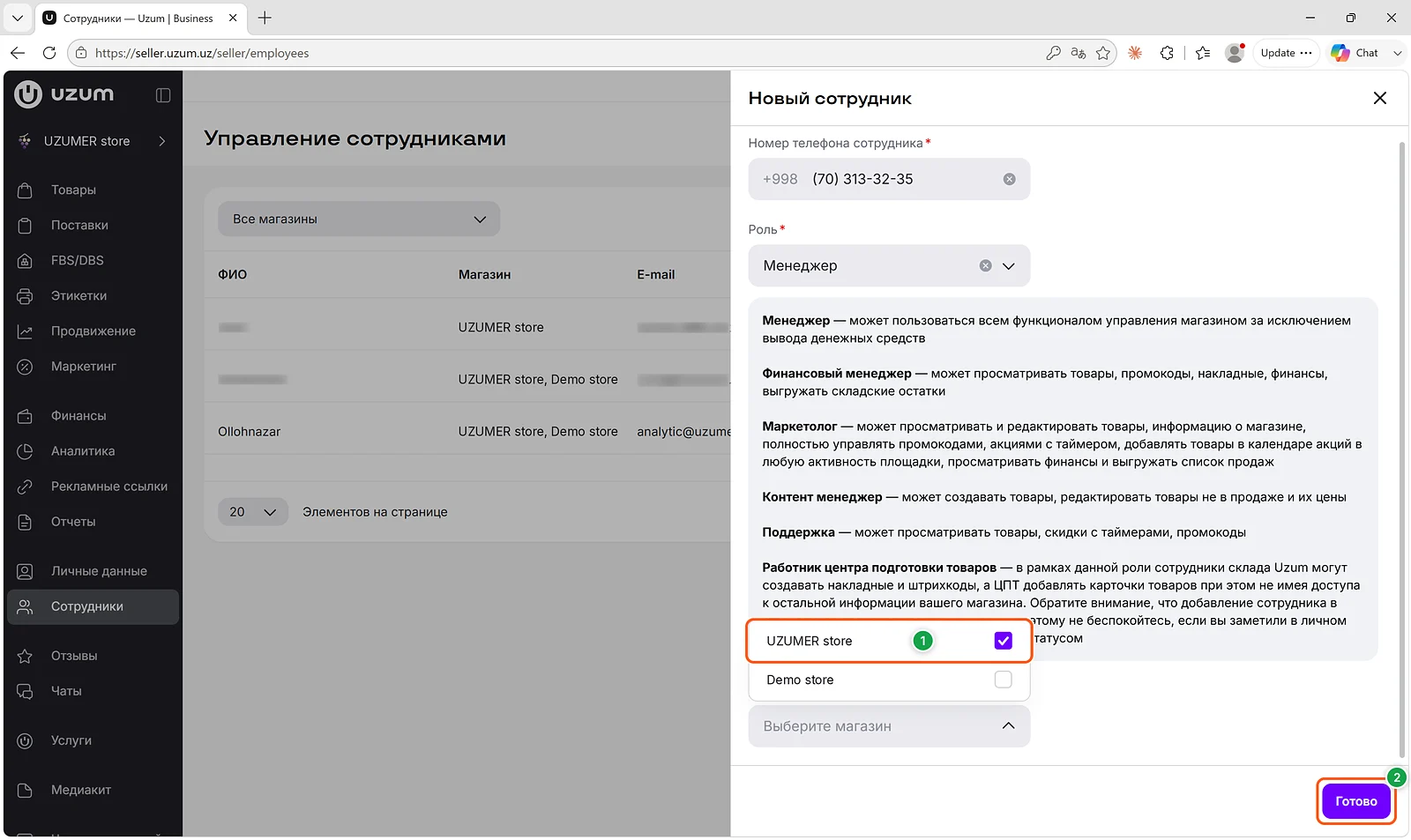
Step 7. Tick the store and click “Готово” (Done)
Open “Доступ к магазинам” (Store access), tick every store you want in Uzumer, and click “Готово”. Without a tick the manager account cannot see that store.
Step 8. Check the row in the list
Seller fills in Ollohnazar and [email protected] on its own, and writes the phone as +998 70-313-32-35 — the same number as +998 70 313 32 35.
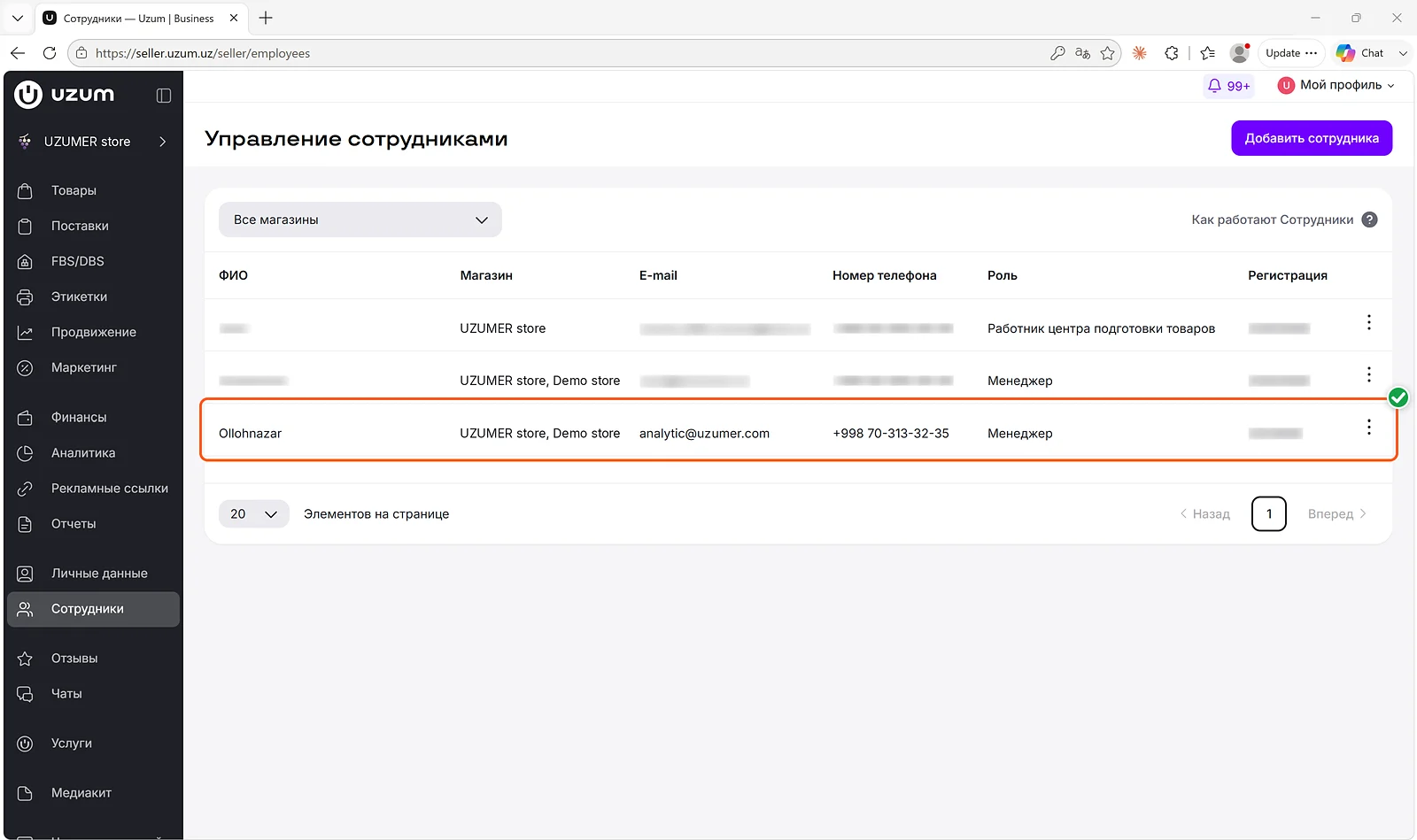
The row should show:
Ollohnazar and [email protected];
the phone +998 70 313 32 35;
the role “Менеджер”;
this store ticked under “Доступ к магазинам”.
A wrong role or a missing tick is corrected from the ⋮ menu next to the row.
In Uzumer: finish the connection
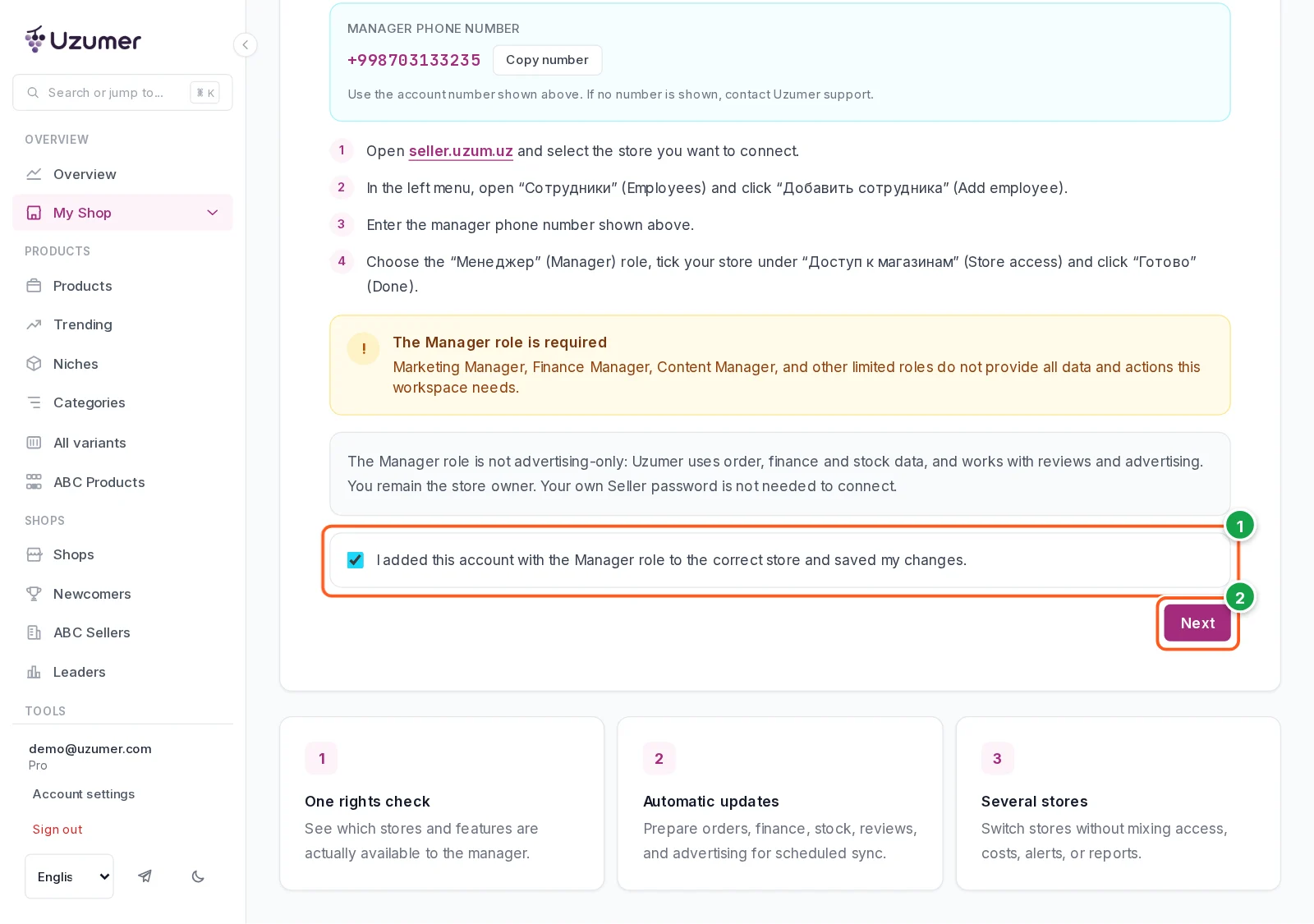
Step 9. Confirm and click “Next”
On “Manager”, tick “I added this account with the Manager role to the correct store and saved my changes.” and press “Next”.
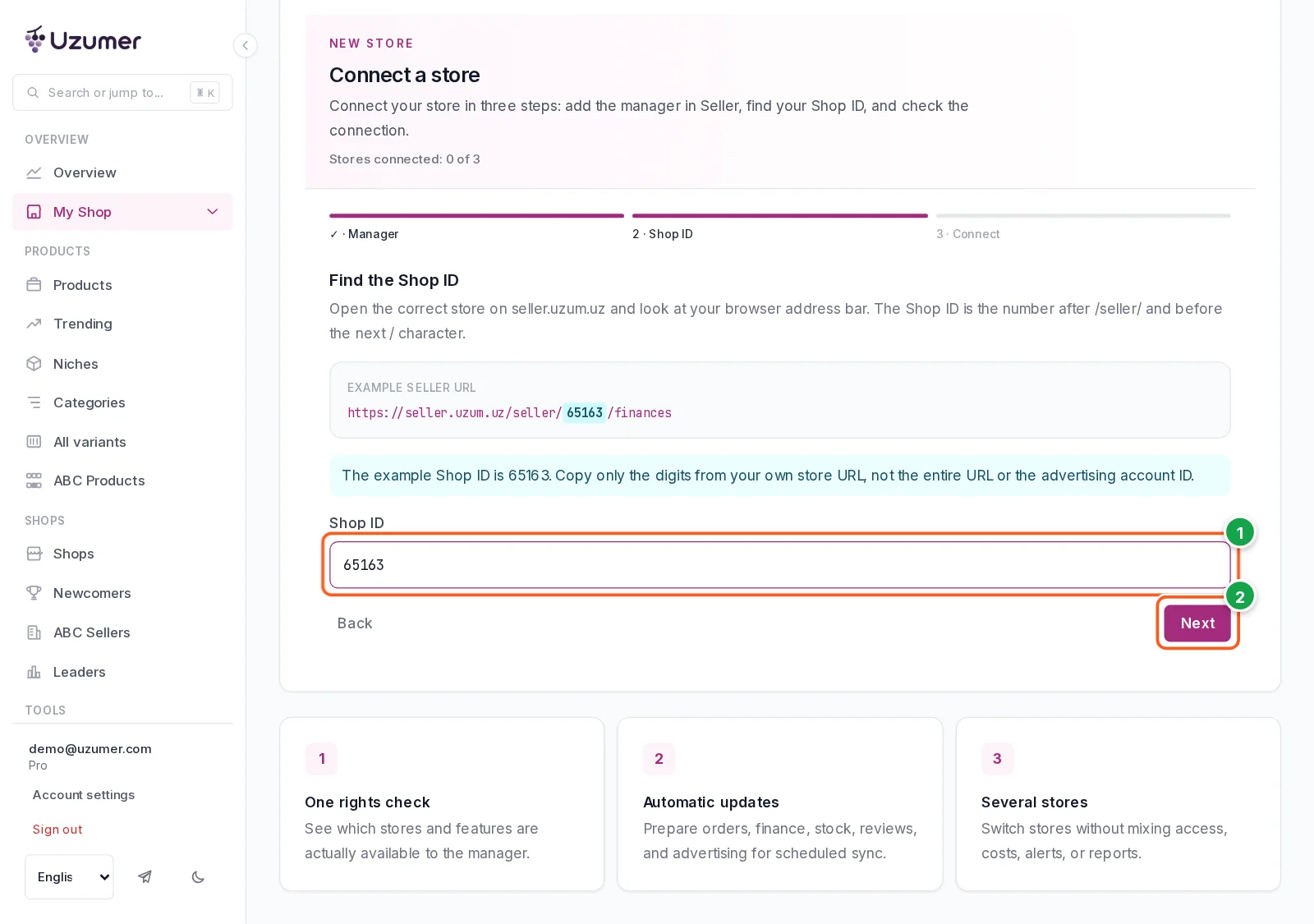
Step 10. Enter the Shop ID and click “Next”
“Find the Shop ID” is the digits right after /seller/ and before the next slash. In https://seller.uzum.uz/seller/65163/finances the Shop ID is 65163. The screenshot shows that example; you type your own store’s digits. Paste neither the whole address nor an advertising account ID. When the field holds only your store’s digits, press “Next”.
On “Финансы” (Finances) or “Сотрудники” the address may have no number, as in …/seller/employees. Open a section of the specific store. If the digits are still missing, ask Uzumer support and we will tell you the ID.
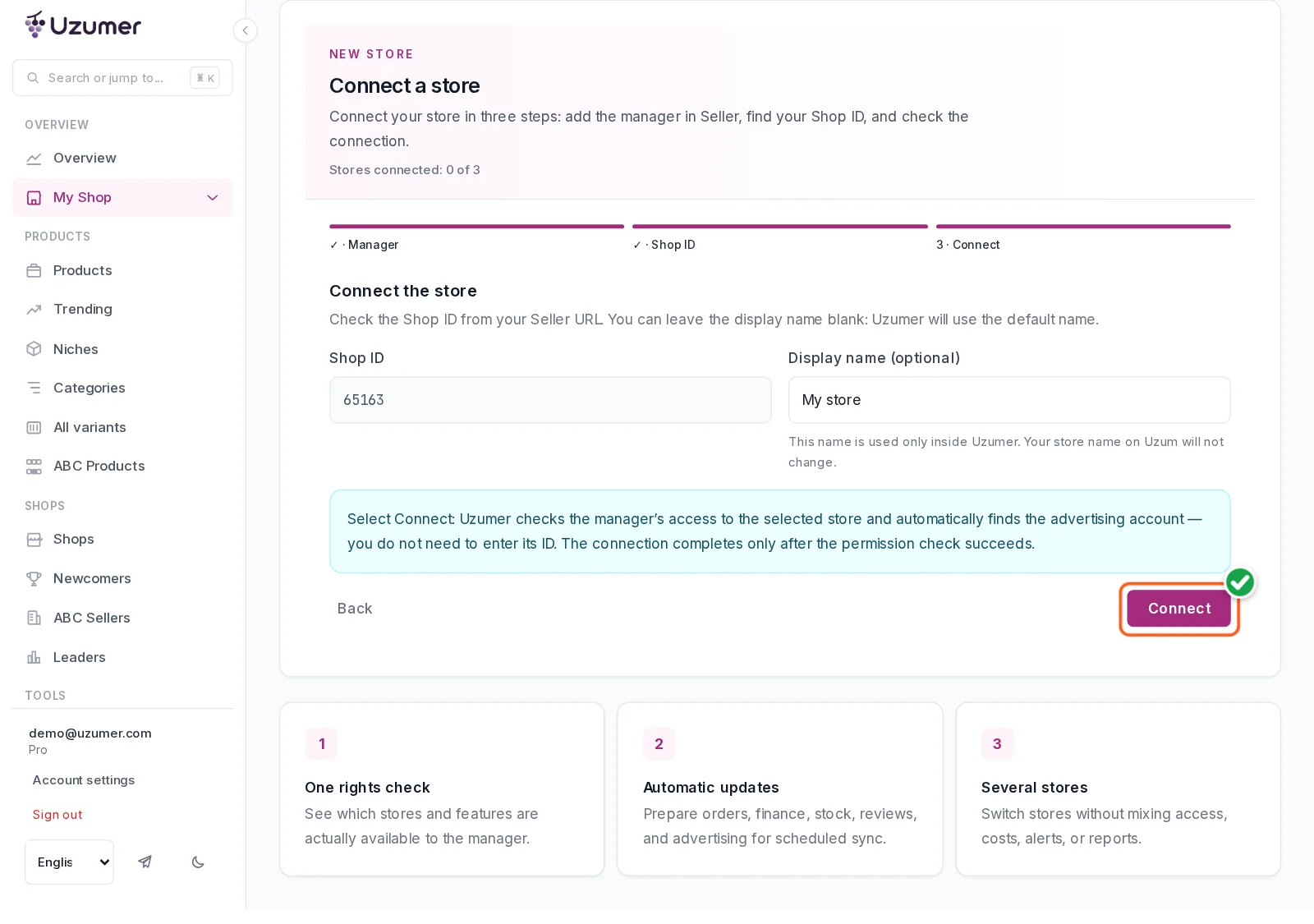
Step 11. Click “Connect”
On “Connect the store”, the display name is optional and stays inside Uzumer, so the name on Uzum does not change. Press “Connect”. Uzumer checks that the manager account can see this store and finds the advertising account on its own. The connection completes only after that check succeeds, and the first data then starts loading in “My Shop”.
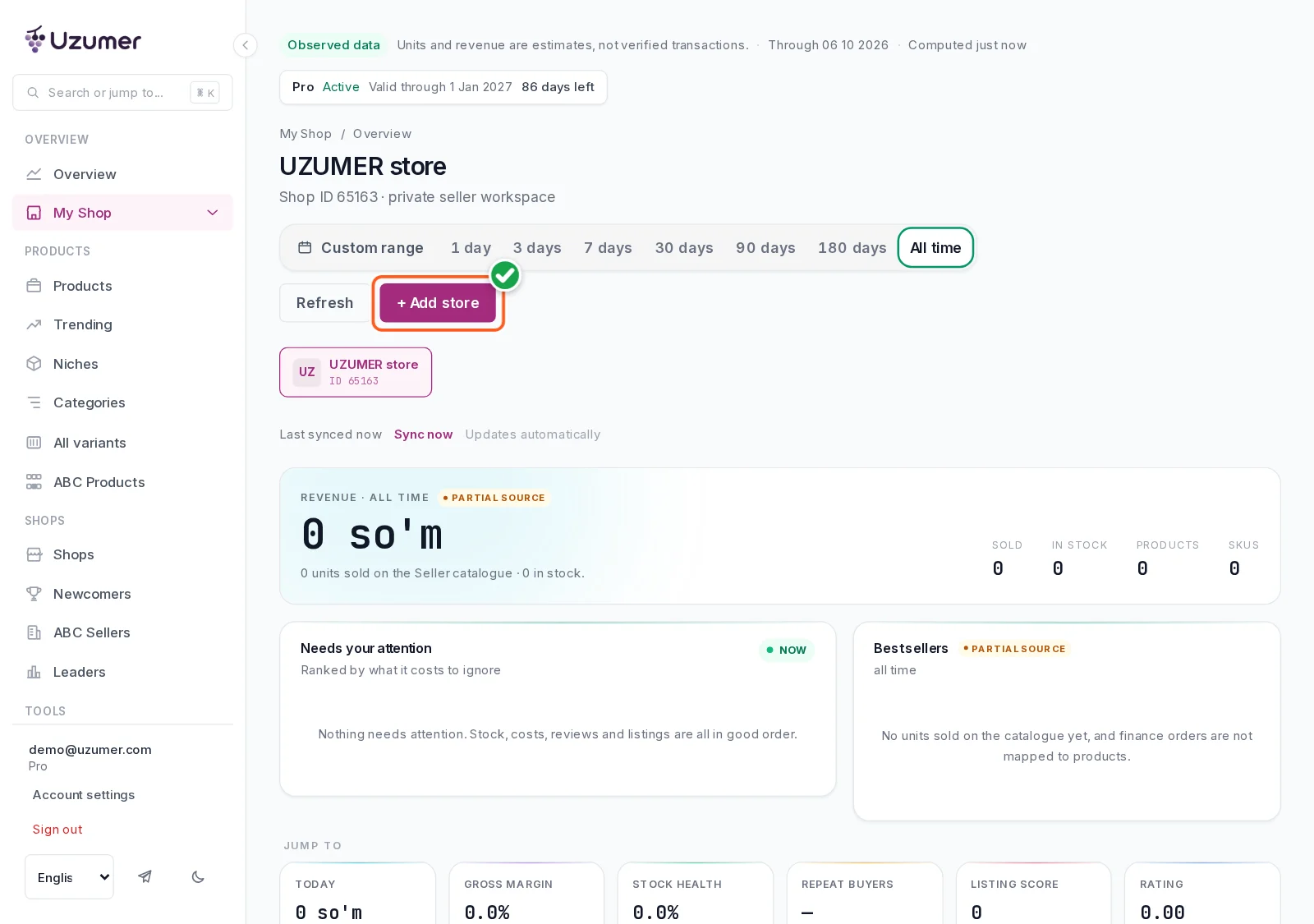
How to connect another store
Once a store is connected, “My Shop” shows its card. UZUMER store, Shop ID 65163, is only the example on the screenshot. Click “+ Add store”.
The same wizard opens in a window on “Manager”. Press “Copy number”.
Repeat steps 3–8 and tick the new store under “Доступ к магазинам”. If Ollohnazar is already listed, do not add a second employee: open the row from the ⋮ menu and add the tick. In the window, confirm, enter this store’s Shop ID, and press “Connect”. The plan sets how many stores you can connect.
If you see an error
“This Shop ID is not in the manager account store list. The store was not added.” Tick the store under “Доступ к магазинам”, and paste only your own digits — not the address, the example 65163, or an advertising account ID.
“The store exists, but required Manager permissions are missing. The store was not added.” In “Сотрудники”, open the row from the ⋮ menu and set “Менеджер”.
“This shop is already connected to another Uzumer account.” One store links to one Uzumer account only. Disconnect it on that account, or contact support.
“An active subscription is required to connect a store.” The wizard adds the store once the subscription is active.
“Your plan allows …” Disconnect one store, or move to a higher limit on the pricing page.
“Too many checks. Wait a few minutes and try again.” Press “Connect” again after that pause.
Questions and answers
Is it safe?
Yes. Your Uzum Seller password stays with you. Uzumer uses a separate account that you added, and you remain the owner of the store.
Can Uzumer withdraw money?
No. Uzumer works only through “Менеджер”, and Uzum Seller’s description of that role excludes withdrawing money.
How do I revoke access?
At any time, open “Сотрудники” and remove the employee from the ⋮ menu next to the row. Once Ollohnazar is gone, that account has no access to the store.
Can I connect several stores?
Yes. Each store needs a tick under “Доступ к магазинам” and its own Shop ID. The section above shows how to open the wizard once one store is already connected.
If a check still fails, or the address has no Shop ID, write to [email protected] or use the Telegram support button on the site.
Comments0 comments
Sign in to comment
No comments yet. You can write the first one.